BINGO 7.2 - April 2020
This page describes BINGO as it existed at the stated release date. For current behavior and requirements, use the current Manual, Reference, and Guides.
General Enhancements
Several small bugs have been corrected. E.g.:
REPLO: The zoom function is now working correct.
3dView: The keys to activate different function should now work on all Windows versions and on all different types of computer hardware.
SAMBA: Pushing the Format button, only the available cameras will be displayed in the Photo formats window.
ImgView and LIMBO: The format of the images will be estimated correct (not too large anymore). Hint: If different photo formats are in the files, the largest is used to process or display the images.
… and some more.
BINGO
BINGO allows now to process image measurements from different cameras with different weights. Up to three special groups can be defined beside the common group.
Example with an OSPRAY camera:
C   <K><__Camera_Name_><___C'___><___XH'__><___YH'__><__S_C'_><_S_XH'_><_S_YH'_><G>
CAPA                 1    82.000                         0.01     0.01     0.01
CAPA                 2   123.000                         0.01     0.01     0.01  1
CAPA                 3   122.995                         0.01     0.01     0.01  1
CAPA                 4   123.004                         0.01     0.01     0.01  2
CAPA                 5   122.999                         0.01     0.01     0.01  2
C     1 = ND  Nadir
C     2 = RI  Right
C     3 = LE  Left
C     4 = BW  Backward
C     5 = FW  Forward
C
C    (_Factor_)
GRUP  2.0            Group 1 for cameras 2 and 3
GRUP  0.5            Group 2 for cameras 4 and 5
C
Camera 1 is in the common group with the standard deviation defined in the BINGO Parameters window. The standard deviation for cameras 2 to 5 will be defined with the given Factors in the GRUP statement.
The GRUP statements have to be below the CAPA statements. If group numbers are applied in the CAPA statements the GRUP statements are obligatory and must have only one value.
Additional GRUP statements for groups of point numbers are in this case not allowed.
In the bingo.lis file there will be the new output of group numbers:
     Camera data with standard deviations
     Camera        C'        XH'       YH'     +- S C'     S XH'     S YH' (1/1000) Group
-----------------------------------------------------------------------------------------
          1     82.0000    0.0000    0.0000                                           0
          2    123.0000    0.0000    0.0000                                           1
          3    122.9950    0.0000    0.0000                                           1
          4    123.0040    0.0000    0.0000                                           2
          5    122.9990    0.0000    0.0000                                           2
The results of variance component estimation shows for the different camera groups:
           A posteriori variance-component estimation for all observation groups
           Test value  = s(a posteriori) / s(a priori)
      Group                              Test Value    No. of Obs.   Redundancy
 -----------------------------------------------------------------------------------------
      Photo coordinates                 :      0.21            884       500.80
      Photo coordinates weight group 1  :      0.44            734       408.42
      Photo coordinates weight group 2  :      1.39            790       415.35
An additional new output shows the mean photo scales per camera:
      Mean photo scale camera 1 :  18.785
      Mean photo scale camera 2 :  17.619
      Mean photo scale camera 3 :  17.796
      Mean photo scale camera 4 :  18.249
      Mean photo scale camera 5 :  18.249
Batch Tools
The BINGO batch tools ImgCleanBt, MakeGrid and SamBatch have been changed. At the end of processing a message window pops up for two seconds to confirm termination of the program. Only in case of errors a pop-up window will stay and wait for a click to terminate the program.
LIMBO can be started now as well in a batch job.
MakeGrid has been enhanced. It can now be started with just one parameter: the camera name. The step width will then be calculated from the ADPA statement in the itera.dat file from the values below <_FF_from_x'_y'_>.
3dView
In the market are several tools to create a video from the rotating 3D object in the 3dView graphics. The quality is limited and there is no flexibility to change viewing parameters during rotation (e.g. adding vectors or GCP numbers or changing size of confidence ellipsoids.
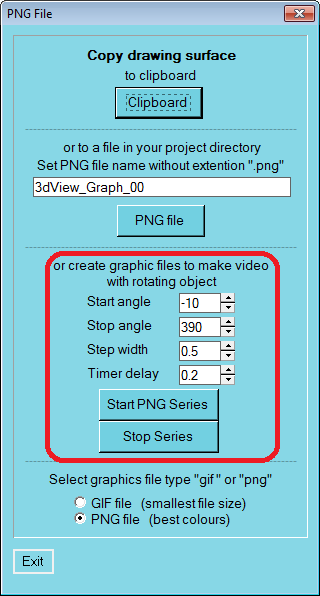
A new feature in this program allows creating series of screen shots with the rotating 3D object.
Start and stop angle for the rotation can be defined. The step width should be between 0.5 gon and 2 gon for a nice result.
This is a time critical operation, and the program crashes if the timer delay is too short. Within this time the rotated image has to be created and written to file.
The necessary delay is depending on the speed of the computer and its graphics card. In case of problems increase the timer delay.
The names of the created images are given by the internal time of the workstation.
In case you have to stop the screen shot production, use the “Stop Series” button to terminate the production immediately.
Combining several series using different parameters might produce a very nice video with a lot of information.
Many tools in the Internet can produce a nice video from the image series. E.g.: Windows Movie Maker, Movavi, VideoPad, Wondershare Filmora9, Avidemux, and many more.
Procedure:
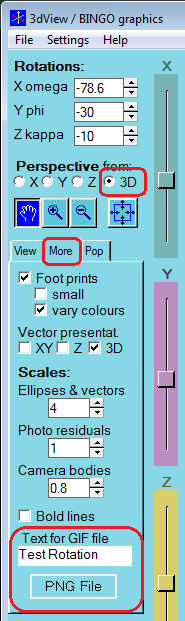
Select “3D”, select property page “More”, Enter a Text for the graphic output, and push the “PNG File” button. The “PNG File” window will show up. Select your parameters and push “Start PNG Series”. If you prefer GIF files, change the selection below.
Parallel Processing
During this year a lot of effort has been invested to make BINGO again faster. New methods are available to process large matrices on NVIDIA graphic cards. A special language CUDA has been developed from NVIDEA. The newest graphic cards have big potential for really fast processing. See file GPU_Times.pdf in directory Extra.
The integration of these possibilities into BINGO is scheduled for January 2020. If this is done, the already existing parallel processing in the CPU will be made available for all BINGO users. The parallel processing on the GPU will be a new option for BINGO.